Blog
All Blog Posts | Next Post | Previous Post

 Bridging FlexCel and Our Next-Gen Data Grid
Wednesday, February 4, 2026
Intro
Modern business applications frequently need to exchange data with Microsoft Excel. Whether it's generating reports, importing spreadsheet data, or creating documents from templates, Excel integration is a must-have feature. The TMS FNC Excel Bridge provides seamless Excel integration for TTMSFNCDataGrid, enabling powerful import and export capabilities.
In this blog post, we'll explore how to use TTMSFNCDataGridExcelExport and TTMSFNCDataGridExcelImport to create professional Excel documents from your grid data and import Excel files back into your application.
Exporting Grid Data to Excel
The TTMSFNCDataGridExcelExport component makes exporting grid data to Excel straightforward. Simply drop the component on your form, connect it to your DataGrid, and call the Export method.
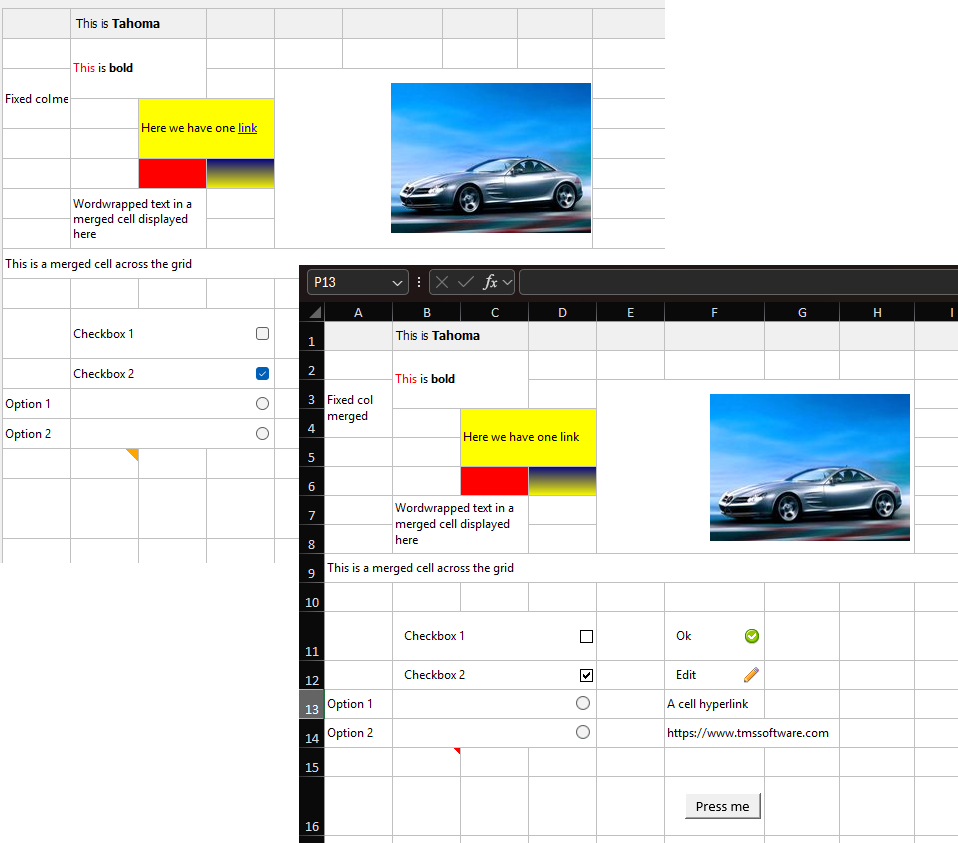
The SimpleExport demo showing a DataGrid with various content types: merged cells, HTML formatting, images, checkboxes, hyperlinks, and gradient fills - all exportable to Excel.
procedure TMainForm.BtnExportExcelClick(Sender: TObject);
begin
  if not SaveDialogExcel.Execute then exit;

  ExcelExport.Export(SaveDialogExcel.FileName, 'Result');

  if TTMSFNCUtils.Message('Do you want to open the generated file?',
     TMsgDlgType.mtConfirmation, [TMsgDlgBtn.mbYes, TMsgDlgBtn.mbNo], 0) = mrYes then
  begin
    TTMSFNCUtils.OpenFile(SaveDialogExcel.FileName);
  end;
end;
The second parameter specifies the sheet name in the resulting Excel file.
Export Options
The Excel Bridge provides extensive control over what gets exported through the ExportOptions property. You can fine-tune the export behavior to match your exact requirements:
ExcelExport.ExportOptions.CellSizes := True;        // Export column widths and row heights
ExcelExport.ExportOptions.Formulas := True;         // Export formulas (not just values)
ExcelExport.ExportOptions.CellsAsStrings := False;  // Preserve numeric types
ExcelExport.ExportOptions.CellFormatting := True;   // Export colors, fonts, fills
ExcelExport.ExportOptions.WordWrapped := True;      // Export word wrap settings
ExcelExport.ExportOptions.RawHTML := True;          // Parse HTML in cells
ExcelExport.ExportOptions.Images := True;           // Export embedded images
ExcelExport.ExportOptions.Checkboxes := True;       // Export checkbox states
ExcelExport.ExportOptions.HiddenColumns := True;    // Include hidden columns
ExcelExport.ExportOptions.HiddenRows := True;       // Include hidden rows
ExcelExport.ExportOptions.HardBorders := True;      // Export cell borders
ExcelExport.ExportOptions.ShowGridLines := True;    // Show gridlines in Excel
ExcelExport.ExportOptions.CellMargins := True;      // Export cell padding
ExcelExport.ExportOptions.ReadonlyCellsAsLocked := True;  // Lock readonly cells
ExcelExport.ExportOptions.Outlines := True;         // Export row/column grouping
ExcelExport.ExportOptions.Hyperlinks := THyperlinkExportMode.FirstLink;  // Export hyperlinks
Multiple Output Formats
Beyond native Excel files (.xlsx, .xls), the Excel Bridge can export to other formats directly:
// Export to HTML
ExcelExport.ExportHtml(SaveDialogHtml.FileName, THtmlExportMode.SingleSheet);

// Export to PDF
ExcelExport.ExportPdf(SaveDialogPdf.FileName);
This makes it easy to generate reports in the format your users prefer, all from the same grid data.
Importing Excel Files
The TTMSFNCDataGridExcelImport component brings Excel data into your grid with equal ease:
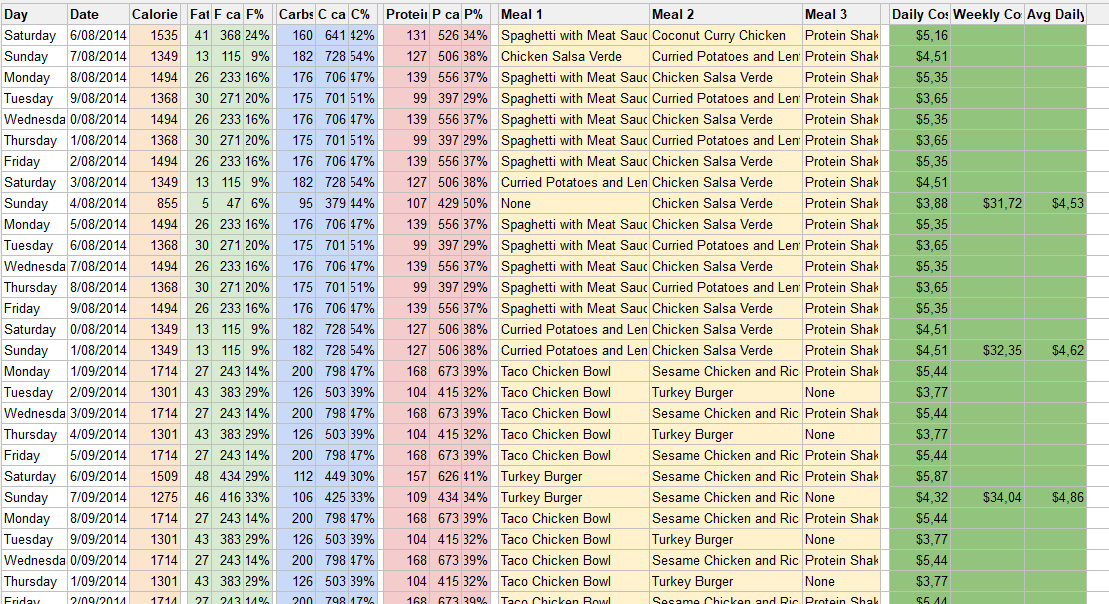
The SimpleImport demo showing an imported Excel file with passenger data, demonstrating how formatting and cell sizes are preserved.
procedure TFSimpleImport.BtnImportClick(Sender: TObject);
begin
  if not OpenDialog.Execute then exit;

  ExcelImport.ImportOptions.Formulas := True;
  ExcelImport.ImportOptions.Images := True;
  ExcelImport.ImportOptions.Comments := True;
  ExcelImport.ImportOptions.CellFormatting := True;
  ExcelImport.ImportOptions.CellSizes := True;
  ExcelImport.ImportOptions.ClearCells := True;
  ExcelImport.ImportOptions.ResizeGrid := True;

  ExcelImport.Import(OpenDialog.FileName);
end;
The import options mirror the export options, giving you control over what data gets imported. The ResizeGrid option automatically adjusts the grid dimensions to match the imported data, while ClearCells clears existing content before importing.
Working with Excel Templates
For more sophisticated scenarios, you can export grid data into existing Excel templates. This is particularly powerful when you need to combine grid data with pre-designed charts, headers, or complex formatting:
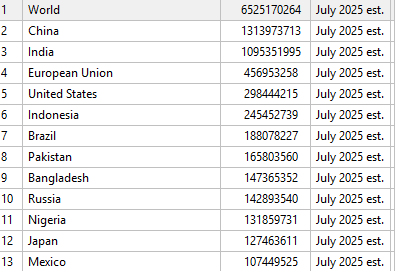
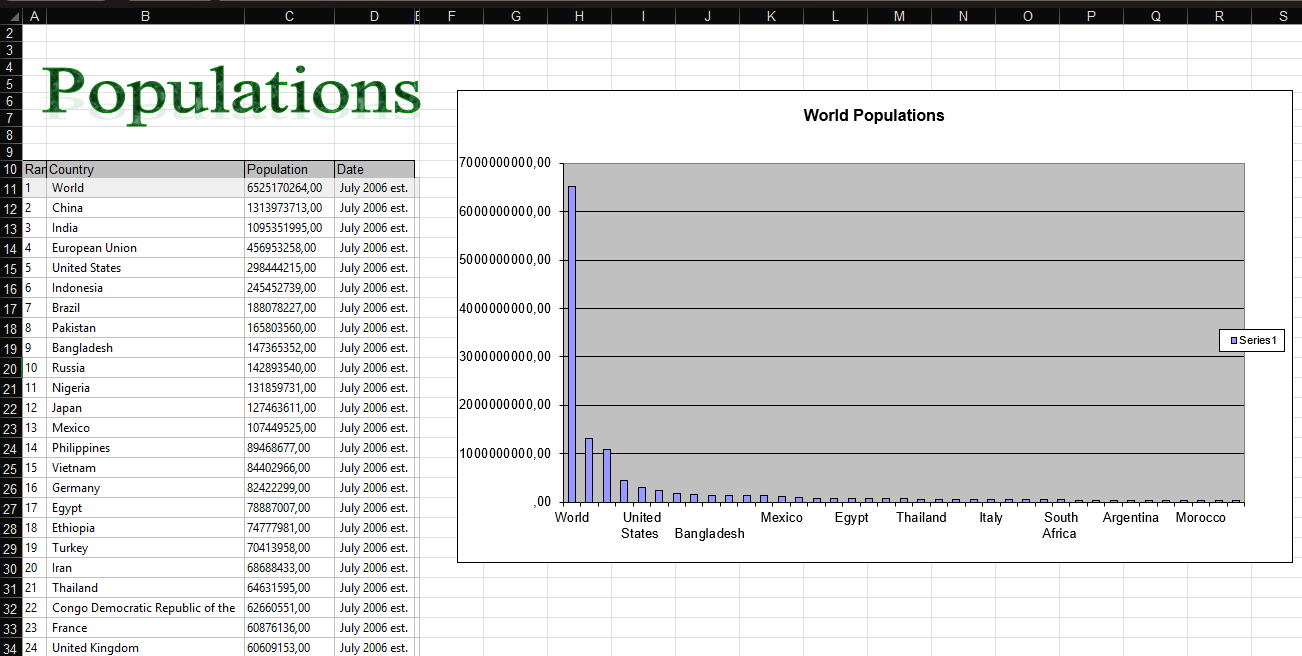
The Templates demo showing population data that will be exported into a pre-designed Excel template with charts.
procedure TMainForm.btnExportClick(Sender: TObject);
var
  Xls: TXlsFile;
begin
  // Open an existing template file
  Xls := TXlsFile.Create('demotemplate.xls', true);
  try
    // Export to a specific sheet, inserting rows
    Xls.ActiveSheetByName := 'Rows Down';
    ExcelExport.LocationOptions.XlsStartRow := 9;
    ExcelExport.LocationOptions.GridStartRow := 0;
    ExcelExport.LocationOptions.GridStartCol := 0;
    ExcelExport.Export(Xls, TInsertInSheet.InsertRows);

    // Export to another sheet with a chart
    Xls.ActiveSheetByName := 'With Chart';
    ExcelExport.LocationOptions.XlsStartRow := 11;
    ExcelExport.Export(Xls, TInsertInSheet.InsertRowsExceptFirstAndSecond);

    // Save the combined result
    Xls.Save('result.xls');
  finally
    Xls.Free;
  end;
end;
The TInsertInSheet options control how data is inserted into the template:
InsertRows- Insert new rows for the grid dataInsertRowsExceptFirstAndSecond- Useful when working with charts that reference specific rows
On-Demand Cell Formatting
For complete control over cell formatting during export, use the OnExportCell event. This allows you to customize number formats, styles, and other cell properties on a per-cell basis:
procedure TMainForm.ExcelExportExportCell(Sender: TObject;
  var Args: TDataGridExportCellEventArgs);
var
  Fm: TFlxFormat;
begin
  Fm := Args.CellFormat;

  // Apply custom number format based on row
  if Args.GridRow = 1 then
    Fm.Format := '$ 0.000'
  else if Args.GridRow = 2 then
    Fm.Format := '0.00000';

  Args.CellFormat := Fm;
end;
Similarly, the OnExportComment event lets you customize comment appearance:
procedure TMainForm.ExcelExportExportComment(Sender: TObject;
  var Args: TDataGridExportCommentEventArgs);
var
  Anchor: TClientAnchor;
begin
  if Args.GridRow = 3 then
  begin
    // Change comment background color
    Args.CommentProperties.ShapeFill := TShapeFill_Create(true, TSolidFill_Create(Colors.Red));

    // Resize the comment box
    Anchor := Args.CommentProperties.Anchor;
    Args.CommentProperties.Anchor := TClientAnchor.Create(
      Anchor.AnchorType, Anchor.Row1, Anchor.Dy1, Anchor.Col1, Anchor.Dx1,
      Anchor.Row2 + 1, Anchor.Dy2, Anchor.Col2, Anchor.Dx2);
  end;
end;
Location Options
The LocationOptions property controls where data is placed:
// Grid range to export
ExcelExport.LocationOptions.GridStartRow := 0;
ExcelExport.LocationOptions.GridStartCol := 0;

// Where to place in Excel
ExcelExport.LocationOptions.XlsStartRow := 1;
Conclusion
The TMS FNC Excel Bridge transforms the DataGrid into a powerful Excel-compatible data management tool. Whether you need simple data export, sophisticated template-based reports, or bidirectional Excel integration, the Excel Bridge provides the flexibility and features to meet your requirements.
Key capabilities include:
- Export to Excel (.xlsx, .xls), HTML, and PDF formats
- Import Excel files with full formatting preservation
- Template-based export for professional reports with charts
- Rich content support including images, hyperlinks, checkboxes, and comments
- Fine-grained control through export/import options and events
For more information, visit TMS FNC Excel Bridge and explore the demo applications included with the product.
Pieter Scheldeman
Related Blog Posts
-
Next Generation Data Grid for Delphi: Getting Started
-
Next Generation Data Grid for Delphi: Adding, Formatting & Converting Data
-
Next Generation Data Grid for Delphi: Filtering & Sorting
-
Next Generation Data Grid for Delphi: Grouping
-
Next Generation Data Grid for Delphi: Webinar Replay Available!
-
Next Generation Data Grid for Delphi: Cell Controls
-
Next Generation Data Grid for Delphi: Master-Detail
-
Next Generation Data Grid for Delphi: Calculations
-
Next Generation Data Grid for Delphi: Import & Export
-
Next Generation Data Grid for Delphi: Template
-
Next Generation Data Grid for Delphi: Filter Row
-
Next Generation Data Grid for C++: Getting Started
-
Freebie Friday: Next Generation Grid Quick Sample Data
-
Next Generation Data Grid for Delphi: Columns Editor
-
Next Generation Data Grid for Delphi: File Drag & Drop
-
Next Generation Data Grid for Delphi: Visual Grouping
-
Next Generation Data Grid for Delphi: FMX Linux Support
-
Next Generation Data Grid for Delphi: Header & Footer Buttons
-
Next Generation Data Grid for Delphi: Paging
-
Next Generation Data Grid for Delphi: Cell Classes
-
Next Generation Data Grid for Delphi: Excel Style Selection
-
Next Generation Data Grid for Delphi: AutoFill
-
Bridging FlexCel and Our Next-Gen Data Grid
-
Next Generation Data Grid for Delphi: Headless Data Layer
-
Free Database Generator Sample with our Next Generation Data Grid for Delphi
-
Make Your Data Speak: Conditional Formatting in TMS FNC Data Grid 2.0
-
Data Report with Filtering and Conditional Formatting

This blog post has not received any comments yet.
All Blog Posts | Next Post | Previous Post