Blog
All Blog Posts | Next Post | Previous Post

 Editing, sorting, filtering and paging in TWeb(DB)DataGrid
Thursday, May 28, 2026

Introduction
When building business web applications with Delphi and TMS WEB Core, showing data is only the first step.
Users also expect to work with that data: edit values directly in the grid, sort columns, filter large lists and navigate records page by page. With TWebDataGrid and TWebDBDataGrid, these common data workflows are available directly in the component, while still keeping the programming model familiar for Delphi developers.
In this blog post, we take a closer look at four everyday grid operations:
- Editing cells
- Sorting columns
- Filtering columns
- Paging through records
The examples are based on the TMS WEB Core demo projects for cell editors, column sorting, column filtering and record paging.
Editing Data with Built-in Cell Editors
TWebDataGrid supports different editor types per column. This makes it possible to provide the right editor for the right data type: text editing for strings, checkboxes for Boolean values, numeric editors for numbers, date editors for date values and combobox editors for predefined selections.
When cells in a column can be edited by setting grid.ColumnDefs[index].Editable = true, the type of inplace cell editors available are:
| cetDefault | Default HTML INPUT element to enter any characters |
| cetText | Alphanumeric input control |
| cetNumber | Numeric input control |
| cetDate | Date picker input control |
| cetTime | Time picker input control |
| cetRange | Range picker input control |
| cetColor | Color picker input control |
| cetWeek | Week selector |
| cetMonth | Month selector |
| cetURL | Input control with regular expression check for valid URL entry |
| cetEmail | Input control with regular expression check for valid email entry |
| cetTel | Input control with regular expression check for valid telephone entry |
| cetMemo | Multiline text edit control |
| cetCheckbox | Checkbox control |
| cetCombobox | Combobox control |
| cetDateTime | Date/time picker input control |
For the cetCombobox input control type, per column, you can define the values for the combobox via grid.ColumnDefs[index].SelectOptions. This is a collection of combobox text & values. If the displayed text is the same as the data you handle in the grid, using grid.ColumnDefs[index].SelectOptions[index].Text is sufficient. Otherwise, specify a Text value as well as the Value. The Value is what is then written to the grid cell upon editing.
This is all that is needed to make the grid feel much more like a real data-entry surface than a static table.
This is all that is needed to make the grid feel much more like a real data-entry surface than a static table.
For TWebDBDataGrid, the same idea applies in a data-aware scenario. The grid columns are bound to dataset fields and editing happens through the connected dataset. This gives Delphi developers a classic RAD workflow in the browser: configure fields, choose the editor behavior and let the dataset handle the data updates.
Sorting Columns
Sorting is one of the first things users expect from a grid. In TWebDataGrid, sorting can be enabled or disabled per column. When enabled, the user can click on the column header to invoke consecutively an ascending sort, a descending sort and then restore the original row order.
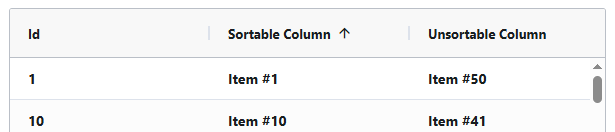
The user can sort the sortable column directly in the grid UI this way. But sorting can also be controlled from code.
procedure TForm1.btnSortSortableColumnClick(Sender: TObject);
var
  SO: TDGSortOrder;
begin
  case cmbSortOrder.ItemIndex of
    0: SO := TDGSortOrder.soAscending;
    1: SO := TDGSortOrder.soDescending;
    else SO := TDGSortOrder.soNone;
  end;

  WebDataGrid1.ColumnDefs.FindColumn('SortableColumn').Sort(
    SO,
    chkAddToExistingSortOrder.Checked);
end;
The second parameter makes it possible to add this sort operation to an existing sort order. This is useful when building applications where users need multi-column sorting, for example by category first and by name or date afterwards.
Clearing sorting is equally direct:
procedure TForm1.btnClearSortingClick(Sender: TObject);
begin
  WebDataGrid1.ColumnDefs.ClearSorting;
end;
This programming model is especially useful when the grid is controlled by external UI elements such as toolbar buttons, menu items or predefined views.
With TWebDBDataGrid, the same sorting experience can be offered on top of dataset-backed data. This keeps the user interaction consistent whether the data comes from JSON, CSV, custom row data or a live dataset.
Filtering Columns
Filtering helps users focus on the records that matter. Just like sorting, filtering can be enabled per column.
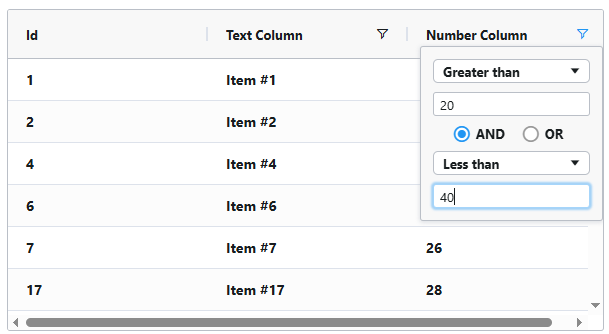
In the filtering demo, a text column and a number column are made filterable:
procedure TForm1.WebFormCreate(Sender: TObject);
var
  Data, IStr, IStr2: String;
  I: Integer;
begin
  WebDataGrid1.ColumnDefs[1].Filter := True;
  WebDataGrid1.ColumnDefs[2].Filter := True;

  Data := '';
  for I := 1 to 50 do
  begin
    IStr := IntToStr(I);
    IStr2 := IntToStr(Random(100));
    Data := Data + IStr + ',"Item #' + IStr + '", ' + IStr2 + #$D#$A;
  end;

  WebDataGrid1.LoadFromCSVString(Data);
end;
When filtering is enabled for a column, the filter icon appears in the column header and it can be clicked by the user at runtime to show the popup for filter condition entry.
Programmatic filtering can be applied with ApplyFilter.
For a text column:
procedure TForm1.btnFilterTextColumnClick(Sender: TObject);
begin
  WebDataGrid1.ColumnDefs.FindColumn('TextColumn').ApplyFilter(
    TDGFilterType.gftText,
    TDGFilterOperation.foContains,
    '#1');
end;
For a numeric column:
procedure TForm1.btnFilterNumberColumnClick(Sender: TObject);
begin
  WebDataGrid1.ColumnDefs.FindColumn('NumberColumn').ApplyFilter(
    TDGFilterType.gftNumber,
    TDGFilterOperation.foGreaterThanOrEqual,
    25);
end;
This gives full control from application code. A filter can be applied from a button, from a form field, from a saved search, or from any other application state.
Filters can also be cleared globally:
procedure TForm1.btnClearFiltersClick(Sender: TObject);
begin
  WebDataGrid1.ColumnDefs.ClearFilters;
end;
Or per column:
procedure TForm1.btnClearTextColumnClick(Sender: TObject);
begin
  WebDataGrid1.ColumnDefs.FindColumn('TextColumn').ClearFilter;
end;

procedure TForm1.btnClearNumberColumnClick(Sender: TObject);
begin
  WebDataGrid1.ColumnDefs.FindColumn('NumberColumn').ClearFilter;
end;
This makes filtering easy to combine with application-specific actions such as "show open orders", "show high priority tickets" or "show customers from this region".
Pagination
When a grid contains many records, pagination keeps the user interface manageable. Instead of showing all rows at once, the grid can display a page of records and provide navigation between pages.
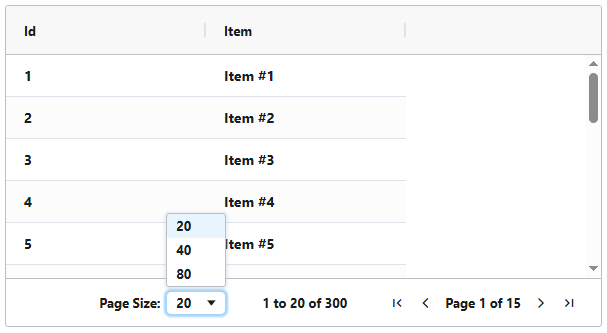
The record paging demo fills the grid with 300 records:
procedure TForm1.WebFormCreate(Sender: TObject);
var
  Data, IStr: String;
  I: Integer;
begin
  Data := '';
  for I := 1 to 300 do
  begin
    IStr := IntToStr(I);
    Data := Data + IStr + ',"Item #' + IStr + '","Item #' + IStr + '"' + #$D#$A;
  end;

  WebDataGrid1.LoadFromCSVString(Data);
  UpdatePagination;
end;
Pagination is controlled through a small set of properties:
procedure TForm1.UpdatePagination;
begin
  WebDataGrid1.Pagination := true;
  WebDataGrid1.PaginationPageSizeSelector := '20,40,80';
  WebDataGrid1.PaginationPageSize := 40;
end;
WebDataGrid.PaginationPageSizeSelector is a comma separated list of the page sizes a user can select from.
This gives users a simple way to choose how many records they want to see on each page. Set the selector to 0 when the page size selector should be hidden.
For data-aware applications using TWebDBDataGrid, pagination is especially useful when the dataset represents a larger result set. The grid remains responsive, and the user keeps a clear sense of where they are in the data.
Combining the Features
The real strength of TWebDataGrid and TWebDBDataGrid is that these features are not isolated.
A business grid will often use several of them together:
- Editable columns for quick data entry
- Sorting for comparing records
- Filtering for narrowing down large lists
- Pagination for keeping the UI fast and readable
For example, an order overview can allow editing the order status, filtering on customer name, sorting by order date and paging through the result set. A product list can use numeric filtering for stock levels, combobox editing for categories and pagination for larger catalogs.
All of this remains close to the Delphi style of development: configure columns, set properties, connect events and write clear Object Pascal code.
Conclusion
TWebDataGrid and TWebDBDataGrid bring modern grid behavior to TMS WEB Core applications while preserving the RAD development experience Delphi developers know well.
With only a few properties and method calls, you can turn a basic grid into an interactive data workspace:
Editable, CellDataType and EditModeType enable rich cell editing
Sortable and Sort provide user-driven and programmatic sorting
Filter, ApplyFilter and ClearFilter make it easy to focus data
Pagination, PaginationPageSize and PaginationPageSizeSelector keep larger datasets manageable
Whether data is loaded directly into TWebDataGrid or exposed through a dataset in TWebDBDataGrid, the result is the same: a fast, familiar and highly productive way to build data-centric web applications with Delphi and TMS WEB Core.
Video
Beta available now

The TMS WEB Core v3.0 beta is available now for all TMS ALL-ACCESS users and can be downloaded from the My Products page after login on our website!
Get 10% Off TMS WEB Core & TMS FNC UI Pack
Enjoy 10% off when purchasing a new license of TMS WEB Core or TMS FNC UI Pack. Simply use the promo code WEBDATAGRID10 at checkout.
Offer valid until June 18, 2026
Bruno Fierens
Related Blog Posts
-
Introducing the DB-aware TWebDataGrid
-
Connecting TWebDataGrid & TWebDBDataGrid to Your Data
-
Editing, sorting, filtering and paging in TWeb(DB)DataGrid
-
Dynamic cell style and cell data formatting in TWeb(DB)DataGrid
-
Custom Cell Rendering in TMS WEB Core TWebDataGrid

This blog post has received 2 comments.
 2. Monday, June 1, 2026 at 9:26:23 PM
Did you look at the demo under Demo\DataGrid\Editing Data\Custom Cell Editors?
2. Monday, June 1, 2026 at 9:26:23 PM
Did you look at the demo under Demo\DataGrid\Editing Data\Custom Cell Editors?We put the other requests on our feature request list
Bruno Fierens
All Blog Posts | Next Post | Previous Post
we have editors with custom lookups (advanced) to use within TWebDBdatagrid.
Please add optional header column filtering (one editor in header column) that permits direct filtering typing into column; AgGrid have this capability.
It seems to me that only the management of the totals in the summary is missing :-)
Great work, keep it up!
Stefano Monterisi