Blog
All Blog Posts | Next Post | Previous Post

 A New Way of Flexible Filtering with TTMSFNCFilterView
Tuesday, December 2, 2025
TMS FNC UI Pack 7.0
With the release of TMS FNC UI Pack 7.0, we are excited to introduce a brand-new component: TTMSFNCFilterView, a powerful and highly flexible filter-building UI designed to organize and synchronize UI controls with a filter structure.
It is possible to link child controls -checkgroups, radiogroups, trackbars, datepickers,... and even your own custom controls- to filter items, that seamlessly communicate with the underlying TTMSFNCFilterStructure.
This makes it possible to build rich, dynamic, user-friendly filtering UIs for any domain: grids, lists, datasets, REST backends, and more.
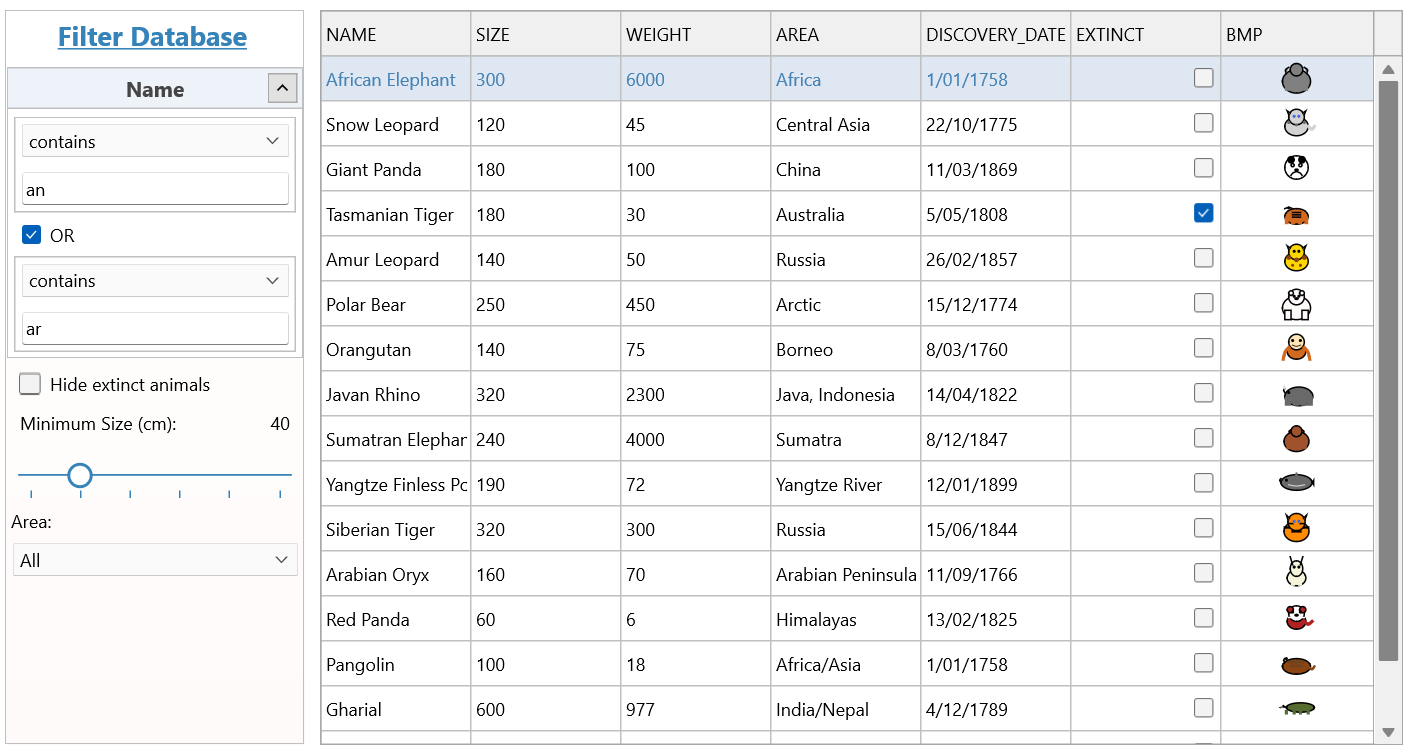
A Visual Filter Builder for FNC Applications
The TTMSFNCFilterView component acts as the main container for all filter UI elements.
You can design filter panels visually using the context menu, or generate them programmatically.
Each Filter UI element automatically creates or updates one or more filter expressions inside the connected filter structure.
If you include additional controls beyond the built-in filter elements, and you want their values to be used in the filter logic, you’ll need to manually add a filter item to the filter structure.
Key Features
- Fully customizable filtering interface
- Built-in controls:
- CheckGroup
- RadioGroup
- TrackBar
- ComboBox
- DatePicker
- RangeSlider
- A Value and Expression mix
- CheckBox
- RadioButton
- More can become available when frequently requested...
- Custom control support through
TTMSFNCFilterViewControlContainer - Flexible expression model
- Multiple output formats:
- Delphi dataset filter
- Universal FNC filter expressions
- Custom parsing format for your own filter implementation
- Parsing events for full control over filter output formatting
How It Works Internally
Every child filter control creates a mapping between the visible UI value and a logical filter expression through the TTMSFNCFilterViewExpressions collection.
A filter expression consists of:
-
Field Name
Data type
-
Operator (equal, not equal, larger than, contains, …)
-
Value
-
AddToFilter flag
The view collects all expressions from all child controls and generates a fully formatted filter text, which can then be applied to a dataset, business layer, or custom filtering engine.
This system allows:
-
One UI control → multiple expressions
-
Multiple UI controls → expressions in the same property
-
Dynamic creation of expressions for unknown values
-
Automatic synchronization when UI values change
The result: predictable, highly customizable filtering behavior.
Example: Building a Filter Panel Programmatically
Below is a simplified example showing how you can build a complete filter panel:
procedure TForm4.SetupFilterView;
var
  fv: TTMSFNCFilterView;
  PickUpRadioGroup: TTMSFNCFilterViewRadioGroup;
begin
  // Create the filter view
  fv := TTMSFNCFilterView.Create(Self);
  fv.Parent := Self;
  fv.Align := TAlignLayout.Left;

  fv.BeginUpdate;

  fv.FilterFormatType := fftDelphiDataSet;

  // --- Add a checkbox for 'In Stock' ---
  fv.AddText('Availability:');
  fv.AddFilterCheckBox(False, 'Empty', fdtBoolean, feoEqual, True).Text := 'Available';

  // --- Add radio buttons for 'Delivery Option' ---
  fv.AddText('Delivery Options:');

  PickUpRadioGroup := fv.AddFilterRadioGroup(['Pick-up store', 'TMS Post', 'Fast Transport', 'Pack AG ING'], 0, 'Delivery');
  PickUpRadioGroup.FilterExpressions.AddOrUpdateExpression('Pick-up store','',False);

  // --- Add a trackbar for 'Rating' ---
  fv.AddText('Rating:');
  fv.AddFilterTrackBar(0, 0, 5, 'Rating', fdtNumber, feoLargerThanOrEqual);

  // --- Add a range slider for 'Price' ---
  fv.AddText('Price:');
  fv.AddFilterRangeSlider(0, 200, 0, 200, 'Price', fdtNumber);

  // --- Show filter changes ---
  fv.OnFilterTextChanged := DoFilterTextChanged;

  fv.EndUpdate;
end;
OnFilterTextChanged event.Deep Dive: Expression Mapping
A major innovation is the TTMSFNCFilterViewExpressions collection.
Each filter control has one or more of these collections to define how UI values map to filter structure values.
For example, a checkbox that checks if the person is an adult might represent:
-
Checked →
AGE >= 18 -
Unchecked → AGE < 18
filterCheckBox.FilterExpressions.DefaultFilterProperties.FilterFieldName:= 'AGE';
filterCheckBox.FilterExpressions.DefaultFilterProperties.FilterFieldDataType := fdtNumber;
filterCheckBox.FilterExpressions.AddOrUpdateExpression('True',  feoLargerThanOrEqual, '18', True);
filterCheckBox.FilterExpressions.AddOrUpdateExpression('False', feoSmallerThan, '18', True);
Grouping with TMSFNCFilterViewPanel
A TMSFNCFilterViewPanel represents a logical group inside the filter view. Each panel can contain multiple filter controls, such as text fields, combo boxes, checkboxes, or custom filter UI items. The panel determines how the expressions from these controls are combined by using an AND or OR operator.
Panels can be nested or combined to build more complex filtering logic. This allows developers to visually arrange filter groups that map directly to sophisticated filter expressions without manually composing the logic.
Range Slider: Dual Expressions with AND/OR Logic
One of the more complex filter controls is the Range Slider, as this control creates a group of two expressions:
-
Independent left/right expressions
-
Custom default filter properties for each thumb
-
Optional AND/OR grouping
Adding Your Own Controls
It is also possible to add existing controls or custom controls that you have created yourself.
Via Design-Time this can be done with the TTMSFNCFilterViewControlContainer.
Or you can add them programmatically with specific methods in the TMSFNCFilterView.
More information on this can be found in the documentation and we will highlight this in an upcoming blogpost.
Closing Thoughts
The new TTMSFNCFilterView component in TMS FNC UI Pack 7.0 gives developers an extremely flexible, powerful, and extensible foundation for building filter interfaces—whether simple or highly sophisticated.
By separating UI controls from filter logic through the expression system, you gain:
-
Full control
-
Predictable filtering behavior
-
Easy extensibility
-
Clean code
-
Faster time to build complex filter scenarios
We are excited to see what you will build with it!
If you have suggestions, need new filter control types, or want to share your use cases, we would love to hear your feedback.
Gjalt Vanhouwaert

This blog post has not received any comments yet.
All Blog Posts | Next Post | Previous Post