Blog
All Blog Posts | Next Post | Previous Post

 Filtering in Delphi: Visual Filter Building
Thursday, July 9, 2026
In the previous blog post, we looked at how TTMSFNCFilterBuilder can be used to build filters as a structured model instead of manually creating one long filter string.
That structure gives us a lot of flexibility as developers.
But in many applications, the filter is not something the developer should define completely in code.
At some point, users need a way to create or change filters themselves.
And we probably don't want them to write something like this:
(Age > 18 AND Country = 'BE') OR (Age > 21 AND Country = 'US')
This is where the filter dialogs come in.
Visual Filtering
The idea is simple.
Instead of asking users to write filter text manually, we let them build the filter visually.
They select:
- the field they want to filter on
- the operator they want to use
- the value they want to compare with
The dialog then creates the filter structure internally and generates the correct filter text.
Because the dialog knows the type of each field, it can also limit the available operators to those that make sense for that field.
So a text field will not show the same operators as a number field, and a boolean field will not show operators that require a text value.
This means that operator mismatch errors are avoided before the filter is even created.
TTMSFNCDataSetFilterDialog
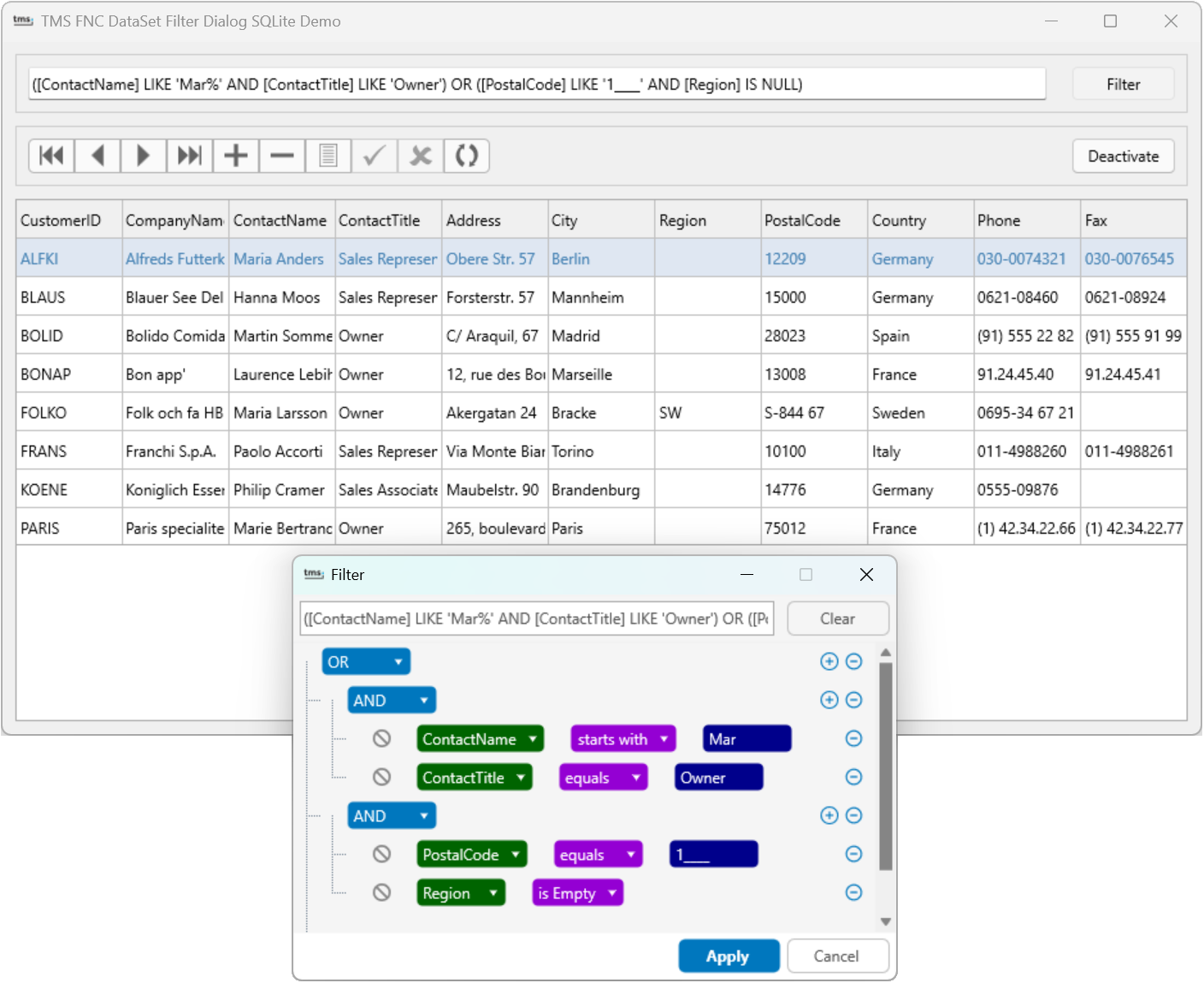
The easiest way to start is with TTMSFNCDataSetFilterDialog. This control is available in our TMS FNC UI Pack.
This dialog is specifically made for working with a TDataSet.
You can connect it to a dataset:
DataSetFilterDialog.DataSet := ClientDataSet1;
When the dialog is opened, it can use the dataset fields to determine which fields are available and which data type they have.
This makes the setup very small, while still giving the user a guided way to create a filter.
The generated result can be assigned directly to the dataset filter.
ClientDataSet1.Filter := DataSetFilterDialog.FilterText; ClientDataSet1.Filtered := ClientDataSet1.Filter <> '';
In most cases you don't even need to manually handle the generated filter text, because the dialog is designed to work directly with the dataset.
Editing Existing Filters
The dialog is not only useful for creating new filters.
If the dataset already has a filter text assigned, the dialog can parse it and rebuild the visual structure.
This makes it possible to open an existing filter, change it visually, and write the updated filter text back to the dataset.
So instead of replacing existing filtering logic, the dialog helps to make it easier to manage.
New: Design-Time Filter Editor
Since the latest release, TTMSFNCDataSetFilterDialog is also available as a design-time editor for the Filter property of a TDataSet.
This means you no longer need to type the filter text manually in the Object Inspector.
You can open the visual filter dialog, select the fields, operators and values, and let the editor generate the filter text for you.
This is especially useful when setting up filters during development.
You immediately get visual guidance, and because only valid operators are available for the selected field type, invalid operator combinations can be avoided.
The generated filter text is then written back to the dataset Filter property.
TTMSFNCFilterDialog
While TTMSFNCDataSetFilterDialog focuses on datasets, TTMSFNCFilterDialog is the more general version.
It uses the same FilterBuilder structure internally, but it is not tied to a TDataSet.
This makes it usable in situations where the data comes from another control or another source.
For example, when using a TTMSFNCDataGrid, the dialog needs to know which columns are available and what data type they represent.
This can be configured directly through the dialog properties or by preparing the FilterBuilder first.
FilterDialog.FilterBuilder.DataColumns.Clear; FilterDialog.FilterBuilder.DataColumns.AddColumn('Age', fdtNumber); FilterDialog.FilterBuilder.DataColumns.AddColumn('Country', fdtText); FilterDialog.FilterBuilder.DataColumns.AddColumn('Active', fdtBoolean);By defining these columns up front, the dialog can again show the correct fields and only the matching operators.
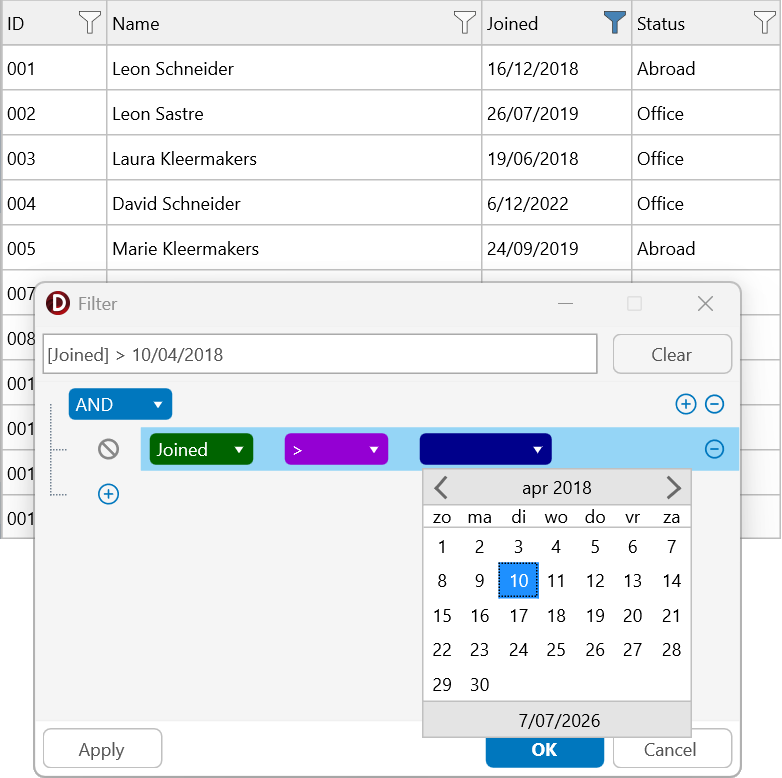
Events can still be used when you want to fill the available columns dynamically, but for many cases configuring the columns directly is the most straightforward approach.
Using the Dialog with TTMSFNCDataGrid
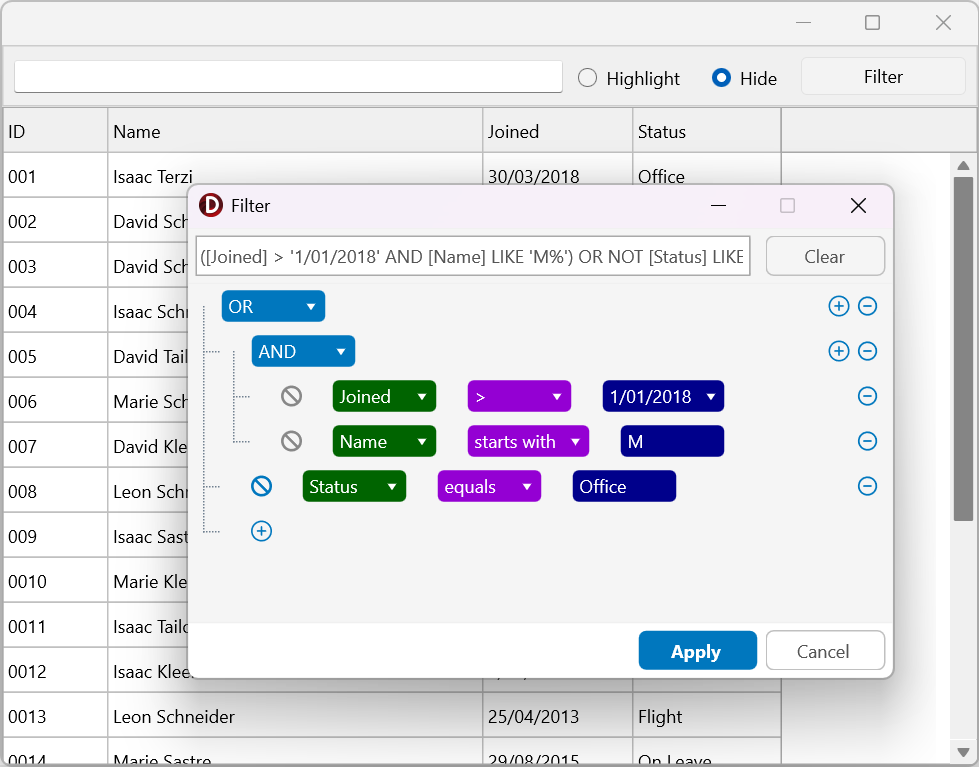
The TTMSFNCDataGrid now also supports the filter dialog directly.
This means that the grid can offer a visual advanced filtering experience without requiring the user to write the filter text manually.
The dialog uses the grid columns to build the available filter fields and then applies the resulting filter to the grid.
This is useful when the filter becomes more complex than a simple column filter.
For example, when you want to combine multiple conditions:
(Age > 18 AND Country = 'BE') OR (Active = True)
The user can build this visually, while the grid receives a valid filter structure.
Why This Matters
Using a visual filter dialog gives a few practical advantages:
- Users don't need to know the actual field names.
- Only operators that match the selected field type are shown.
- AND/OR mismatch errors are prevented while building the filter.
- Values can be entered with guidance based on the field type.
- Existing filters can be opened and edited visually.
- Nested filter groups with
ANDandORbecome easier to create. - The generated filter text can still be used with the existing filtering mechanism.
The important part is that the dialog doesn't introduce a separate filtering system.
It builds on the same structured filter logic from the FilterBuilder and helps users create that structure visually.
Next Step
With the FilterDialog, users can create filters in a guided way through a dialog.
In the next blog post, we'll take this one step further with TTMSFNCFilterView.
Instead of opening a dialog, users will interact directly with controls such as checkboxes, combo boxes, sliders and date pickers, while the filter is updated automatically in the background.
Gjalt Vanhouwaert
Related Blog Posts
-
Filtering in Delphi: From Strings to Structured Logic
-
Filtering in Delphi: Generating, Parsing and Matching Filters
-
Filtering in Delphi: Visual Filter Building
-
Filtering in Delphi: See the Filter Dialog in Action
-
Filtering in Delphi: Let Users Filter Naturally
-
Filtering in Delphi: Building Modern Filter Interfaces
-
Filtering in Delphi: From Filtering Data to Filtering Properties
-
Filtering in Delphi: Building a Highlighting Property-Based Search

This blog post has not received any comments yet.
All Blog Posts | Next Post | Previous Post