Blog
All Blog Posts | Next Post | Previous Post

 TMS FNC Chart 4.0 BETA: Smart Labels & Flexible Orientation
Thursday, February 5, 2026
TMS FNC Chart 4.0 BETA
Intro
We are excited to announce TMS FNC Chart 4.0 BETA! This beta brings a more flexible layout model and smarter label handling while keeping the familiar TMS FNC Chart API intact. It is a focused update aimed at making charts easier to read, easier to style, and easier to fit into modern UI layouts.
What's New in 4.0
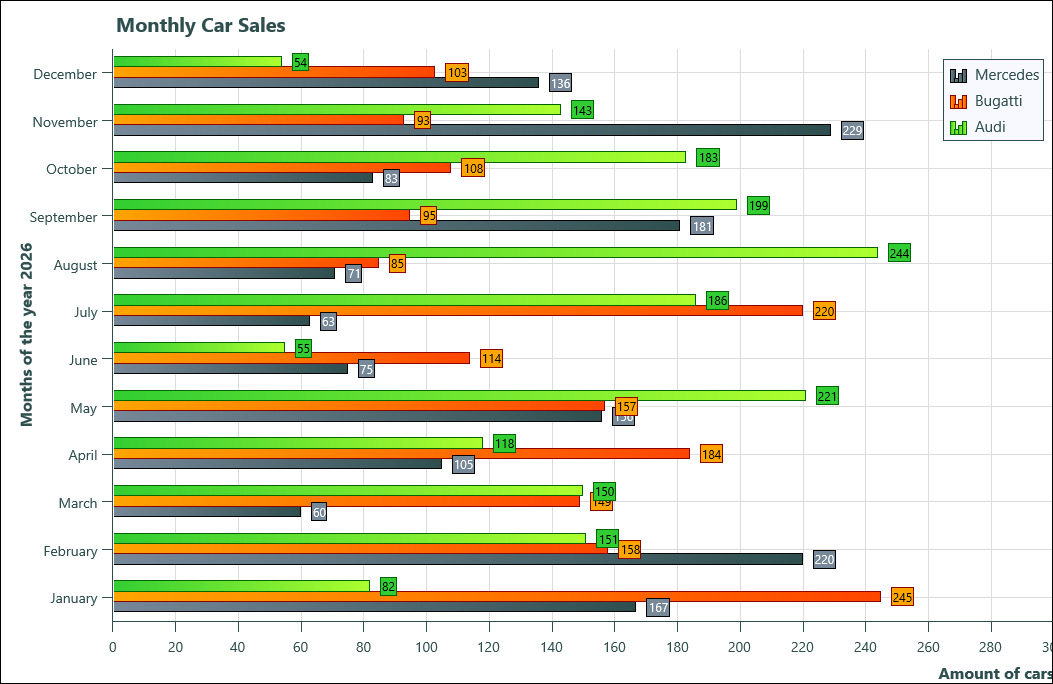
Horizontal mode: render charts with a horizontal orientation using the new
Orientationproperty.Smart Labels: improved label behavior for
XValuesandYValuesto keep axis labels clearer and more readable.
Using Horizontal Orientation
Switching between vertical and horizontal layouts is a single property change. Use TTMSFNCChartOrientation with values coVertical (default) and coHorizontal.
TMSFNCChart1.Orientation := coHorizontal; // Switch to horizontal layout
To restore the classic layout:
TMSFNCChart1.Orientation := coVertical; // Default vertical layout
Smart Labels in Action
Smart Labels give you better control over how axis labels are spaced and rotated. You can enable the behavior per series and fine tune label density with MinLabelSpacing, MinLabels, and MaxLabels. When AutoRotate is enabled, labels can rotate automatically to avoid collisions.
with TMSFNCChart1.Series[0].XValues.SmartLabels do
begin
  Enabled := True;
  AutoRotate := True;
  MinLabelSpacing := 8;
  MinLabels := 3;
  MaxLabels := 10;
end;
You can apply the same configuration to the Y axis when needed:
with TMSFNCChart1.Series[0].YValues.SmartLabels do
begin
  Enabled := True;
  AutoRotate := True;
  MinLabelSpacing := 6;
  MinLabels := 3;
  MaxLabels := 8;
end;
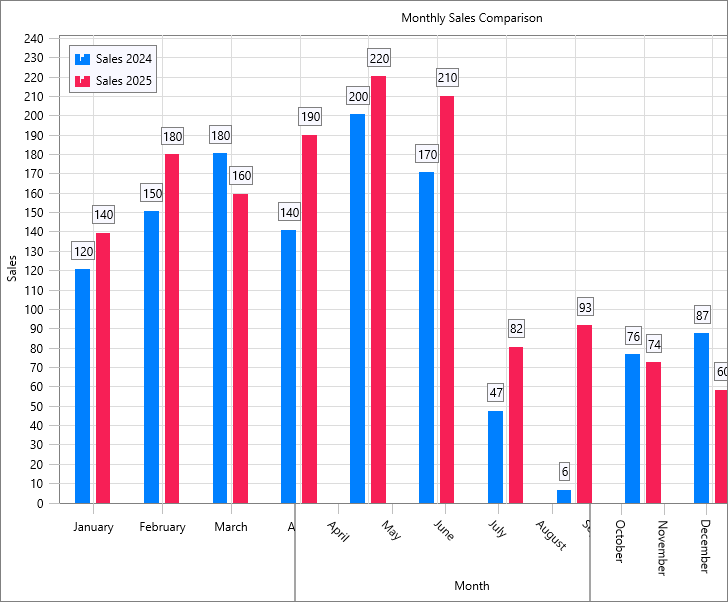
Mockup XValues of three different chart images with different widths
BETA Availability
TMS ALL-ACCESS users have access to BETAs, including this 4.0 release. TMS ALL-ACCESS also includes the full portfolio of TMS products and continuous updates, so you can try new features early and keep your toolchain current without waiting for the next official release. Check the My Products page for separate download links (installer setup & TMS Smart Setup zip file). For TMS Smart Setup, extract the contents of the zip file into the [Drive]\TMS Smart Setup\Products\tms.fnc.chart folder on your machine and then run
tms build -full

What's Next
This beta is also the kickoff for an upcoming blog & video series dedicated to TMS FNC Chart. We will cover new features, practical tips, and best practices for building modern charting experiences across platforms. TMS FNC Chart 4.0 BETA is all about flexibility and clarity. Horizontal mode opens up new layout options, and Smart Labels help keep charts clean and readable. We are excited to hear your feedback during the beta period.
Pieter Scheldeman

This blog post has not received any comments yet.
All Blog Posts | Next Post | Previous Post